Once all the hard work of running and evaluating an auction or tender has been done, the next step is to complete the sourcing cycle and award the business to your chosen supplier. This guide will show you how to: Award an eRFx.
Once you have completed your full eRFx process and have decided on which supplier you wish to use, your next step is to notify them that you are awarding the business to them from within the application.
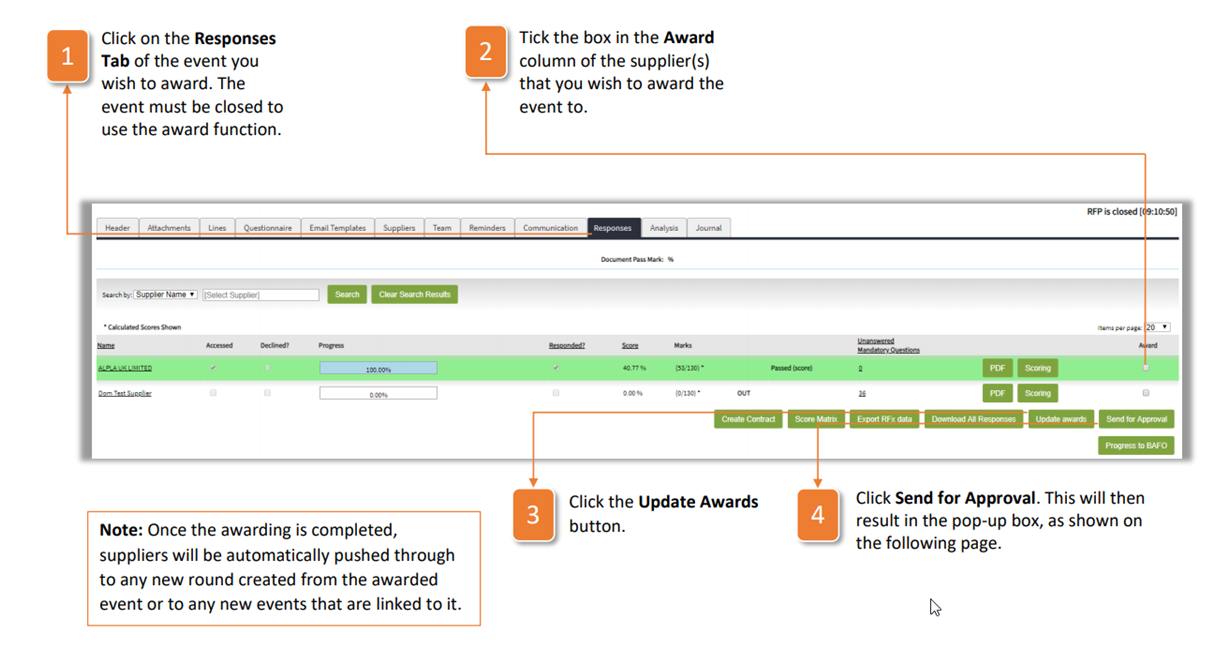
- Click on the Responses Tab of the event you wish to award. The event must be closed to use the award function.
- Tick the box in the Award column of the supplier(s) that you wish to award the event to.
- Click the Update Awards button.
- Click Send for Approval. This will then result in the pop-up box, as shown on the following page.
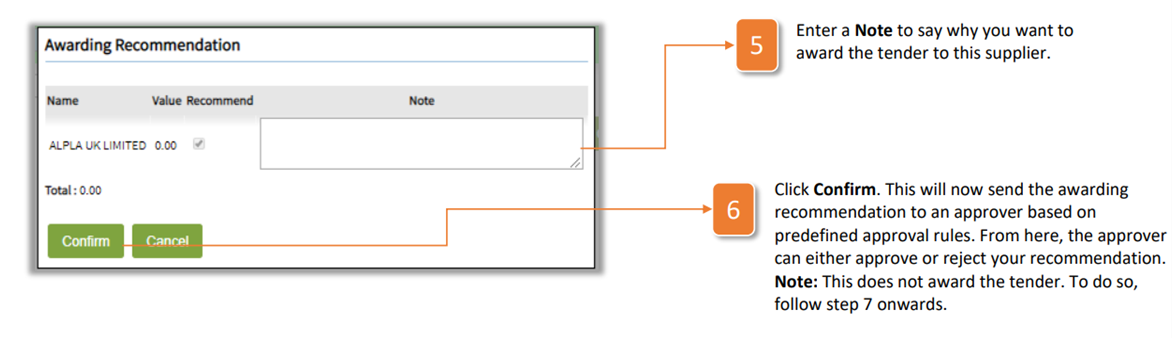
Enter a Note to say why you want to award the tender to this supplier.
Click Confirm. This will now send the awarding recommendation to an approver based on predefined approval rules. From here, the approver can either approve or reject your recommendation. Note: This does not award the tender. To do so, follow step 7 onwards
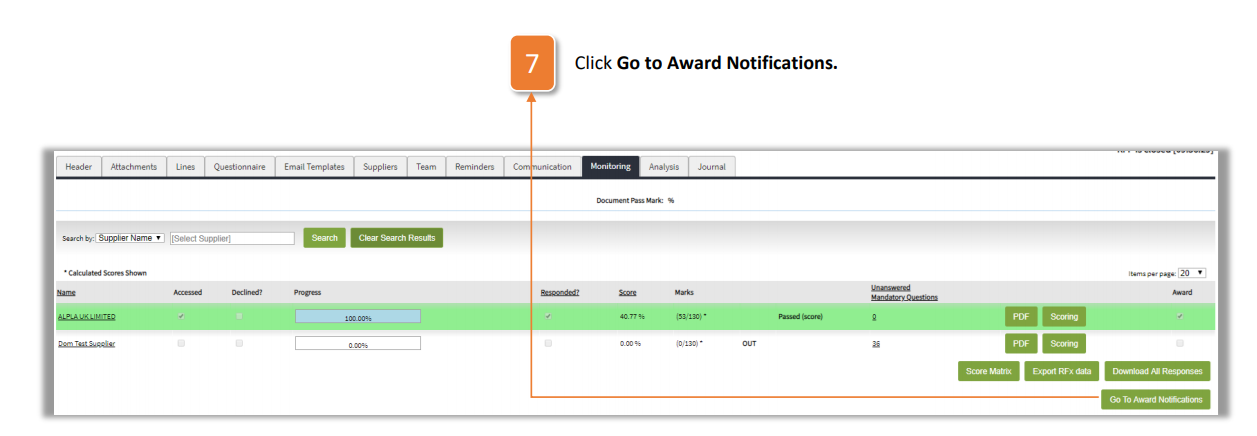
Click Go to Award Notifications
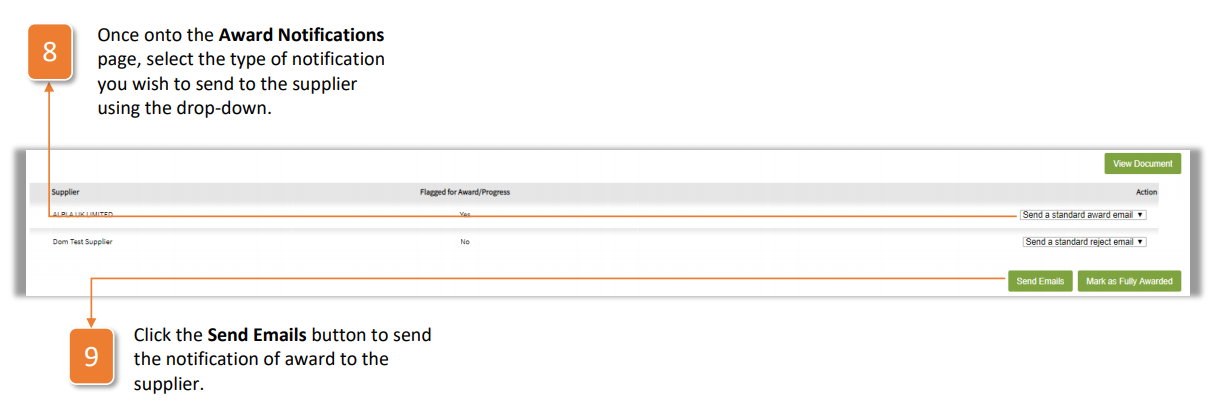
Once onto the Award Notifications page, select the type of notification you wish to send to the supplier using the drop-down.
Click the Send Emails button to send the notification of award to the supplier.
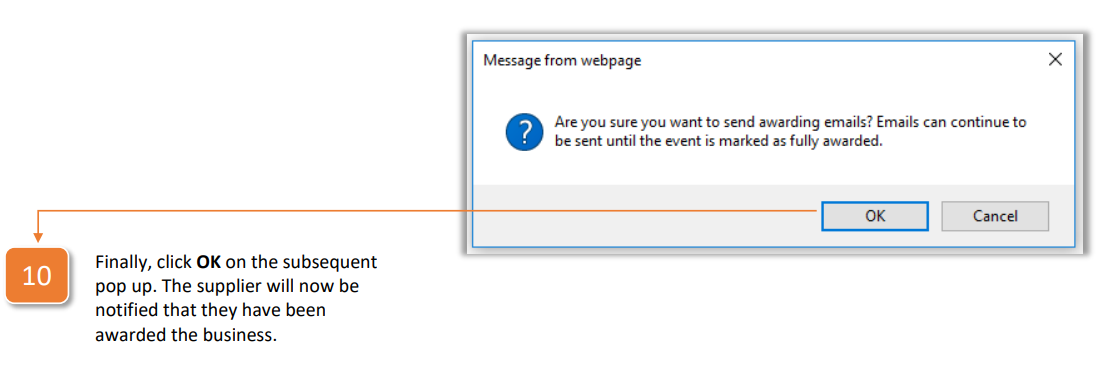
Finally, click OK on the subsequent pop up. The supplier will now be notified that they have been awarded the business.
| Note: Once the awarding is completed, suppliers will be automatically pushed through to any new round created from the awarded event or to any new events that are linked to it |
Click Confirm. This will now send the awarding recommendation to an approver based on predefined approval rules. From here, the approver can either approve or reject your recommendation. Note:This does not award the tender. To do so, follow step 7onwards Confirm. This will now send the awarding recommendation to an approver based on predefined approval rules. From here, the approver can either approve or reject your recommendation. Note:This does not award the tender. To do so, follow step 7onwards.
Click Confirm. This will now send the awarding recommendation to an approver based on predefined approval rules. From here, the approver can either approve or reject your recommendation. Note:This does not award the tender. To do so, follow step 7onwards.
Was this article helpful?
That’s Great!
Thank you for your feedback
Sorry! We couldn't be helpful
Thank you for your feedback
Feedback sent
We appreciate your effort and will try to fix the article