The Lines tab is an integral part of building your tender, and is where you build the lines, lots and groups for which you are going to tender for. Lines can be added as stand-alone items, as part of a lot including other lines, or grouped together to form a group. To create a stand-alone line, follow the instructions below:
- Click the Edit button to activate the line, lot and group creation options.
- Click the Add Line button
Note: This tab contains all of the information relating to the items you are going to tender for and can include information you don't wish a supplier to see. In the questionnaire section of the tender, you can bring the information from this tab through, excluding any information the suppliers shouldn't see. 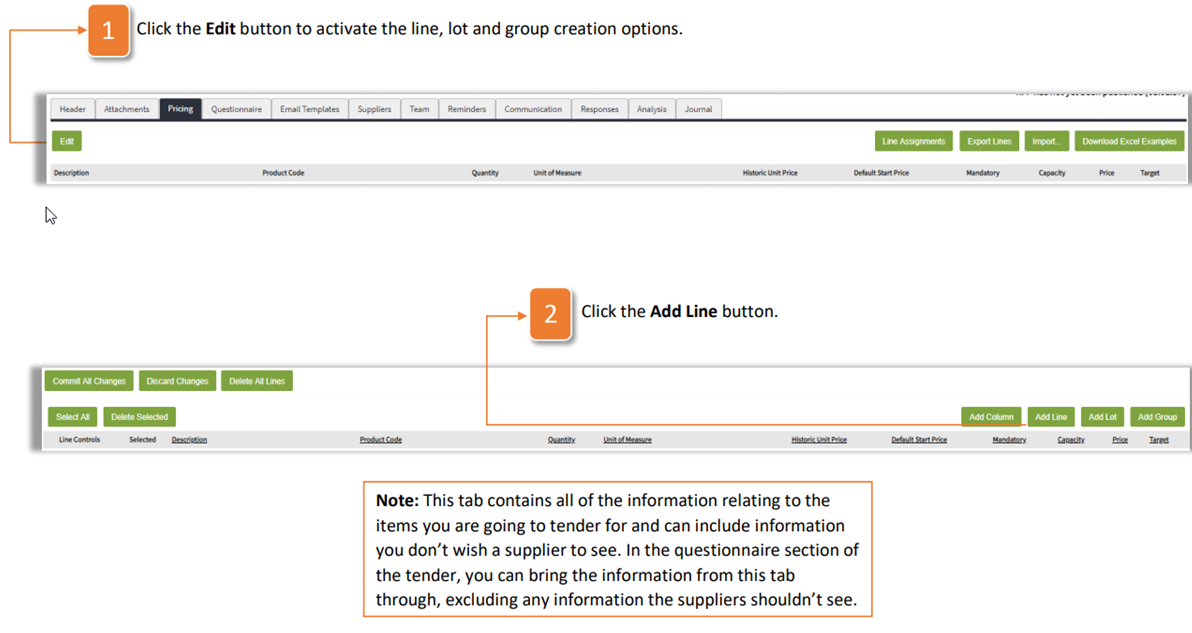
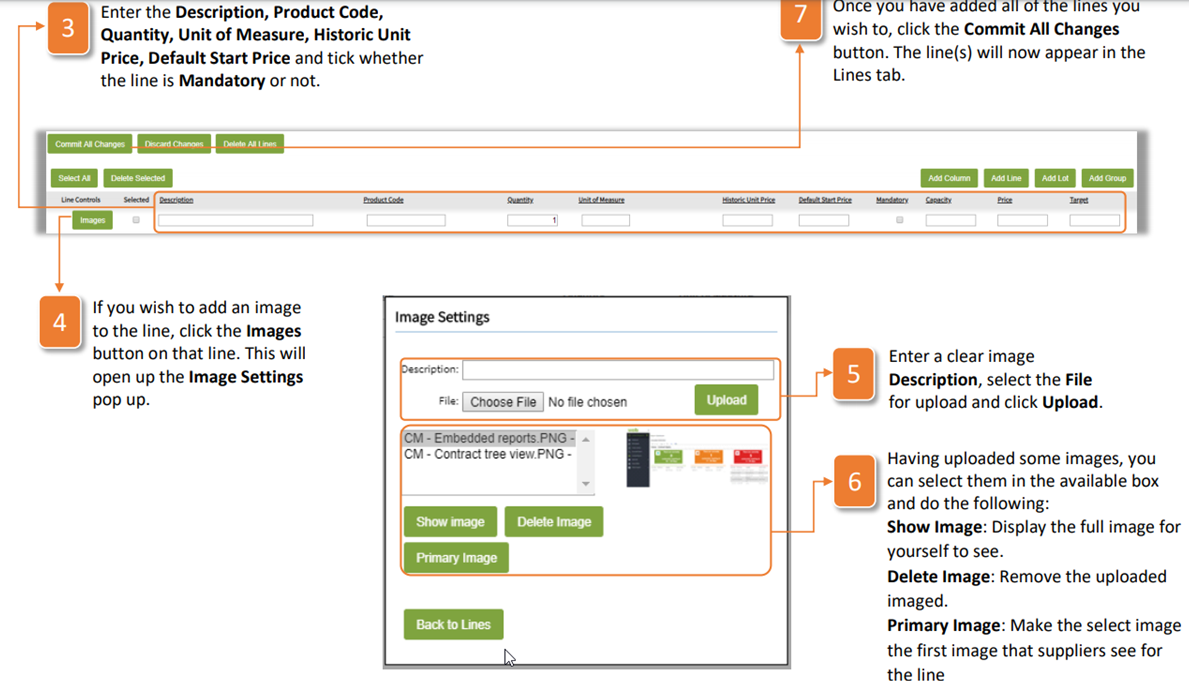
- Enter the Description, Product Code, Quantity, Unit of Measure, Historic Unit Price, Default Start Price and tick whether the line is Mandatory or not.
- If you wish to add an image to the line, click the Images button on that line. This will open up the Image Settings pop up.
- Enter a clear image Description, select the File for upload and click Upload.
- Having uploaded some images, you can select them in the available box and do the following: Show Image: Display the full image for yourself to see. Delete Image: Remove the uploaded imaged. Primary Image: Make the select image the first image that suppliers see for the line
Was this article helpful?
That’s Great!
Thank you for your feedback
Sorry! We couldn't be helpful
Thank you for your feedback
Feedback sent
We appreciate your effort and will try to fix the article