The Interpret plugin can fetch and interpret invoices stored as images or XML files attached to emails on a mail server. To connect and fetch the emails, the specified mail server, email address and relevant password are saved in Readsoft INVOICES. Changes to this information in company's mail setup will need to be reflected in Readsoft INVOICES.
To update the mail information, open the Manager module.
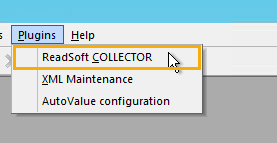
Open the Plugins menu. Click Readsoft COLLECTOR.
Select the Input tab.
Double click the relevant invoice import job.
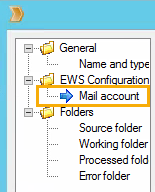
Click the Mail account leaf in the tree menu to the left.
Edit the email address and the password. Note that the window can have different information displayed depending on the protocol used for communication between Readsoft INVOICES and the mail server for the selected invoice import job.
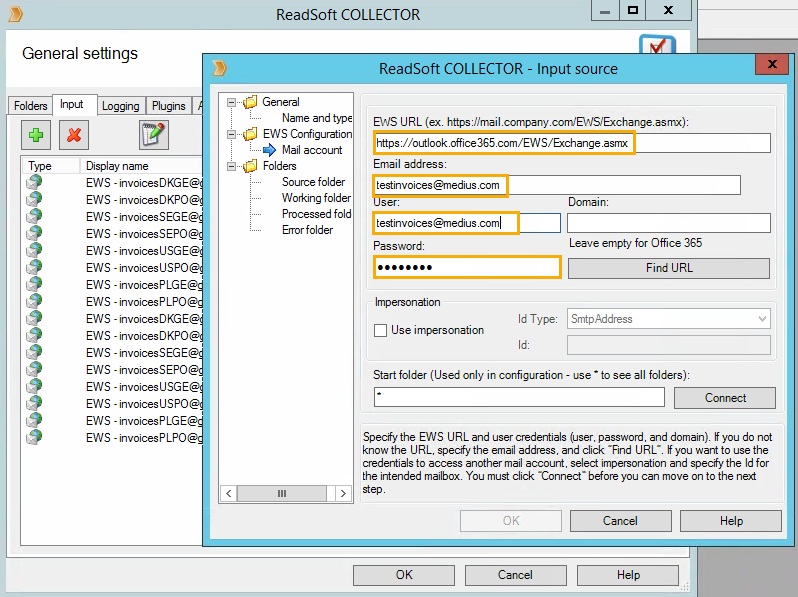
Verify the connection by clicking Connect.
Click the Source, Working, Processed and Error leaves respectively and select the folder to be used by clicking it in the main window.
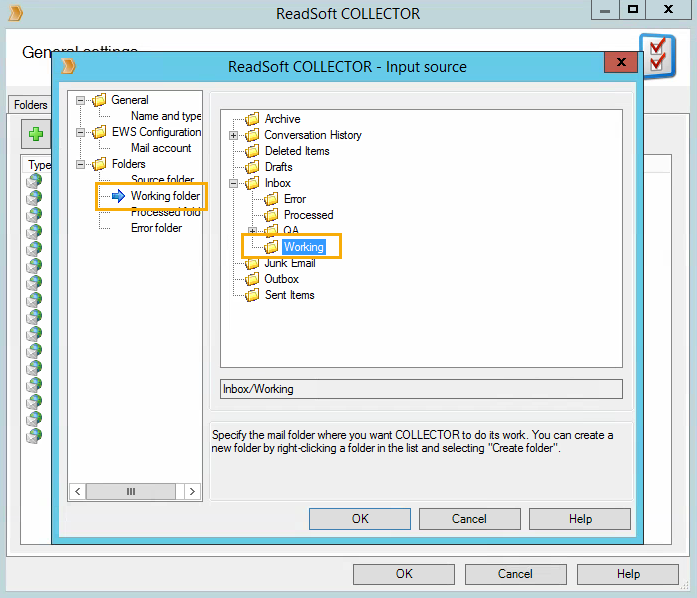
If a corresponding folder does not exist, you have to create it on the mail server.
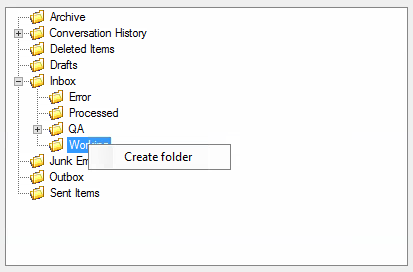
It is also possible to right click a folder in the main window and click Create folder to create a folder on the mail server. Note that it is not possible to move or delete any folder via Readsoft INVOICES. You have to do this directly on the mail server.
Give the folder a name.
When finished, exit Manager and restart the Interpret service. Depending on the version you can do this by:
opening the Services window on the server and restarting the INVOICES Interpret service.
(in newer versions of Readsoft INVOICES) navigating to Administration > Services in Manager, clicking Stop, and then clicking Start to start the service again.

Was this article helpful?
That’s Great!
Thank you for your feedback
Sorry! We couldn't be helpful
Thank you for your feedback
Feedback sent
We appreciate your effort and will try to fix the article