The Communication tab allows you to message to and from the suppliers who are taking part in the tender. To see messages that suppliers have sent to you, follow the instructions below:
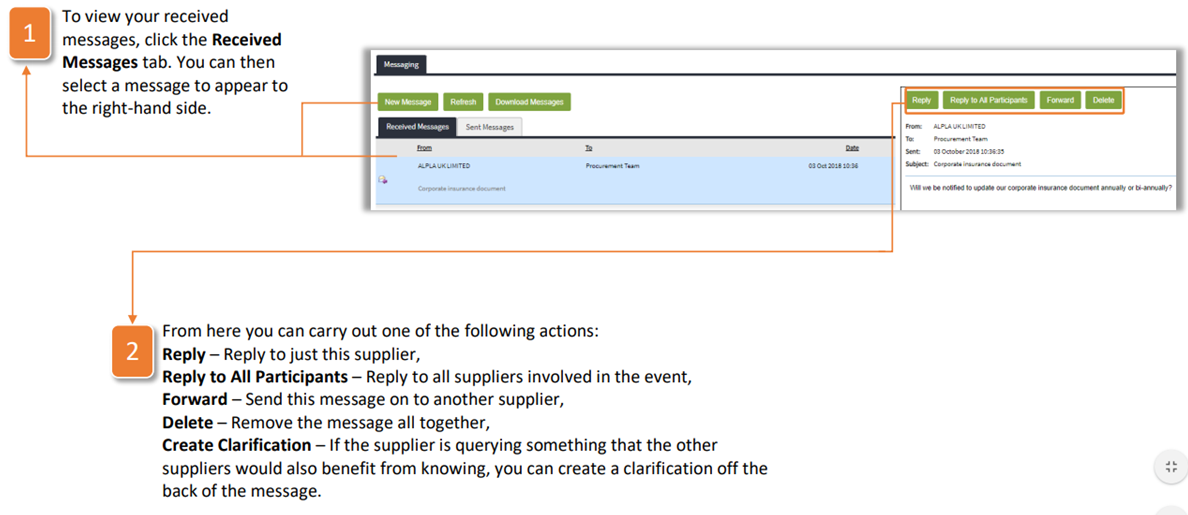
- To view your received messages, click the Received Messages tab. You can then select a message to appear to the right-hand side.
- From here you can carry out one of the following actions: Reply - Reply to just this supplier, Reply to All Participants - Reply to all suppliers involved in the event, Forward - Send this message on to another supplier, Delete - Remove the message all together, Create Clarification - If the supplier is querying something that the other suppliers would also benefit from knowing, you can create a clarification off the back of the message.
How to Create a New Message:
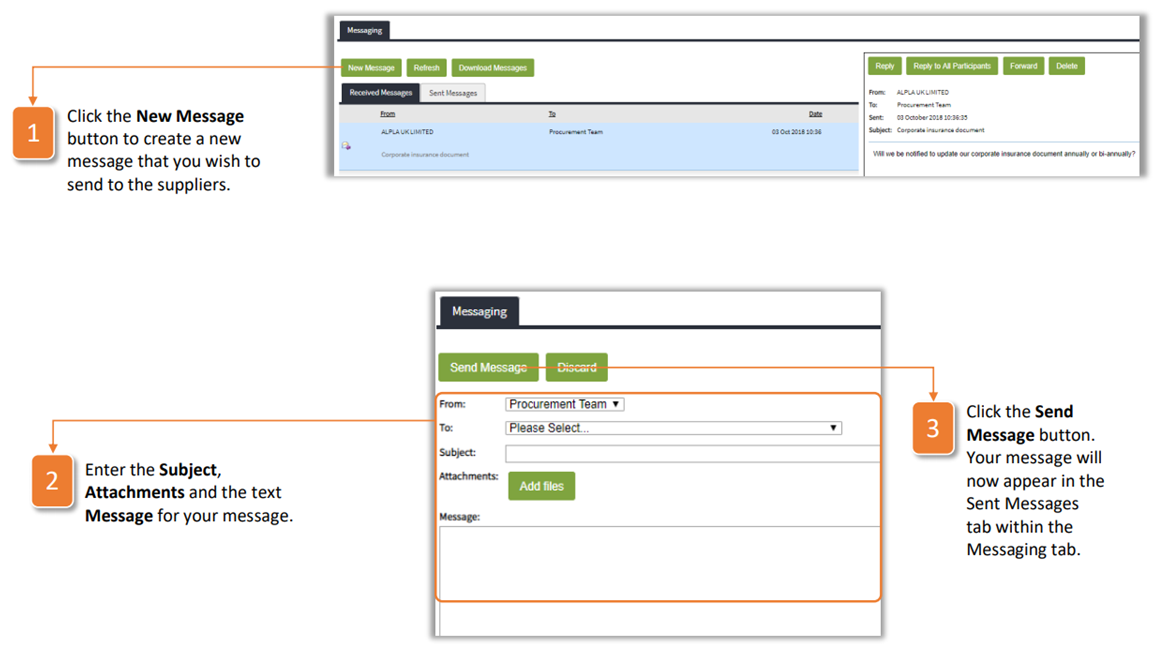
- Click the New Message button to create a new message that you wish to send to the suppliers.
- Enter the Subject, Attachments and the text Message for your message.
- Click the Send Message button. Your message will now appear in the Sent Messages tab within the Messaging tab.
Was this article helpful?
That’s Great!
Thank you for your feedback
Sorry! We couldn't be helpful
Thank you for your feedback
Feedback sent
We appreciate your effort and will try to fix the article