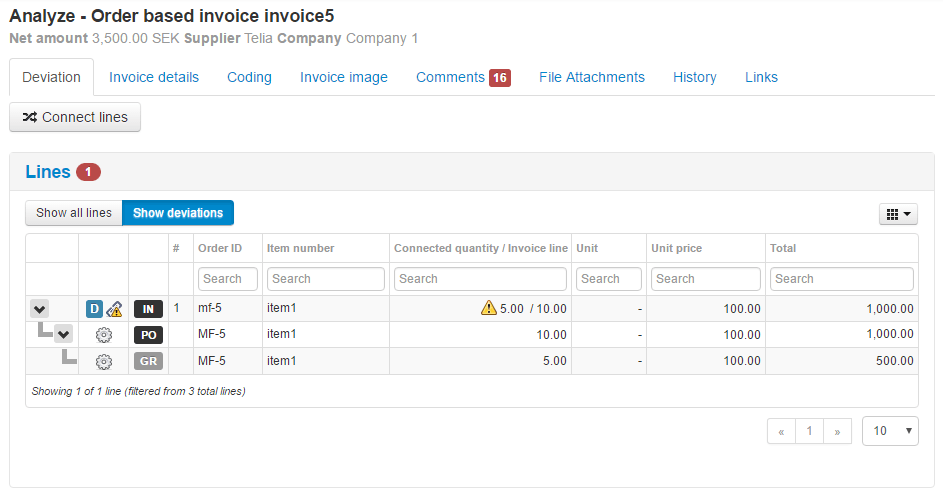
When there is a deviation between an invoice line and order or goods receipt line the relevant lines are highlighted with a warning triangle.
To analyze a deviation on an order based invoice, follow the steps below:
Open the invoice and find the deviation icon. By default, you will only be presented with invoice lines that have deviations
Click the deviation icon
Press Approve or Reject, depending on your decision. You can also redistribute the deviation to another user by pressing Redistribute
If needed, provide a comment for the rejected deviation
Repeat these steps for all deviations on the invoice
Click Confirm to send the invoice further in the flow
For more information on how to analyze and approve, reject, or redistribute deviation, see Analyze and authorize deviations.
For more information on how to avoid manual approval of deviations and increase process automation by automatic coding of deviations for order based invoices, see Order based invoices
Was this article helpful?
That’s Great!
Thank you for your feedback
Sorry! We couldn't be helpful
Thank you for your feedback
Feedback sent
We appreciate your effort and will try to fix the article