The best way to display user roles is to create a report:
Navigate to Reports. If you are using Advanced Search, navigate to Advanced Search and click Take me there! in the message at the top of the screen to display Reports.

Click Create new report.
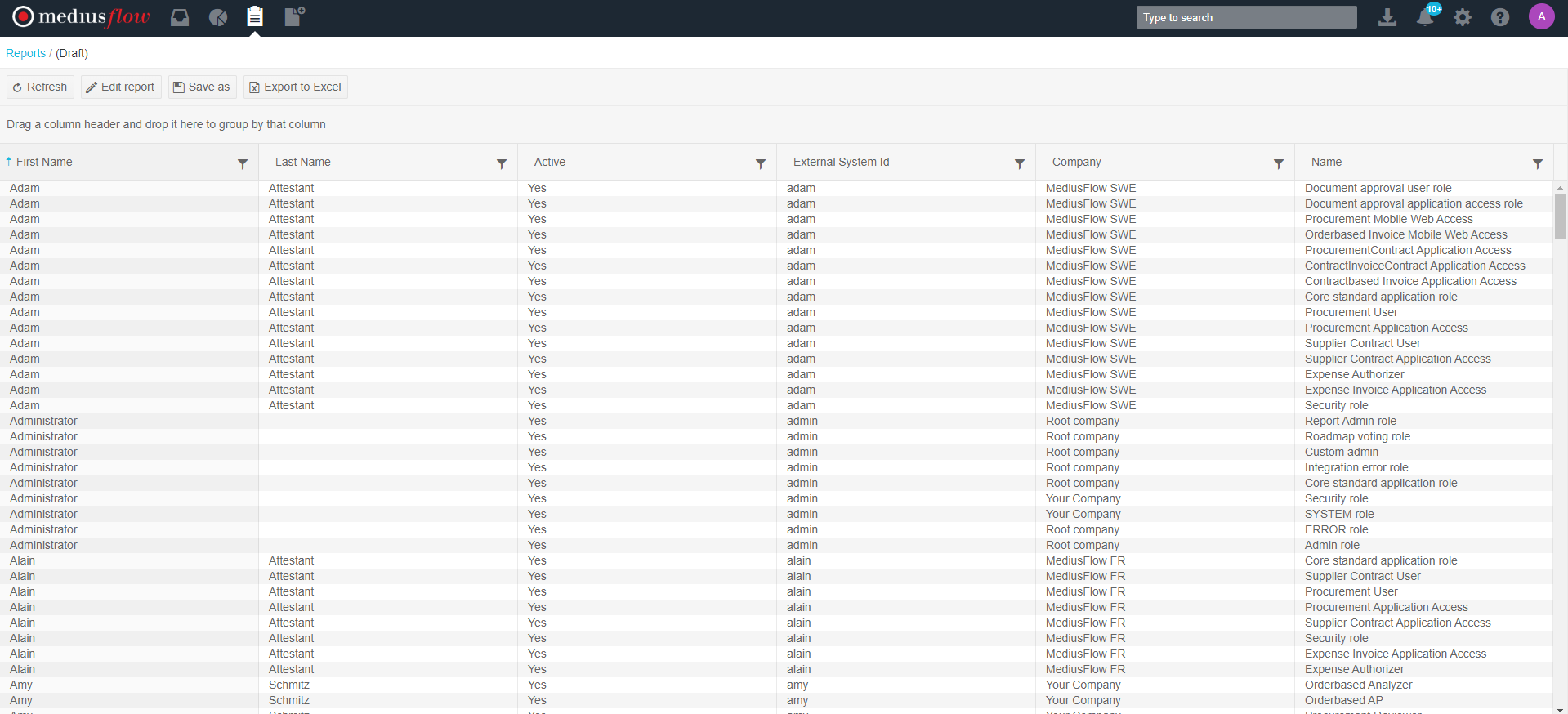
Select User - Roles and click Create.
This creates a default report that you can configure by adding or removing columns and filters. You can also filter the results using column filters. The report displays one report line per user role in a company.
When finished, specify the report name and click Save.
For detailed instructions on how to configure a report, see Reports.
Was this article helpful?
That’s Great!
Thank you for your feedback
Sorry! We couldn't be helpful
Thank you for your feedback
Feedback sent
We appreciate your effort and will try to fix the article