When you receive an error in Document Import related to date format, you can sometimes correct the date data in the invoice file.
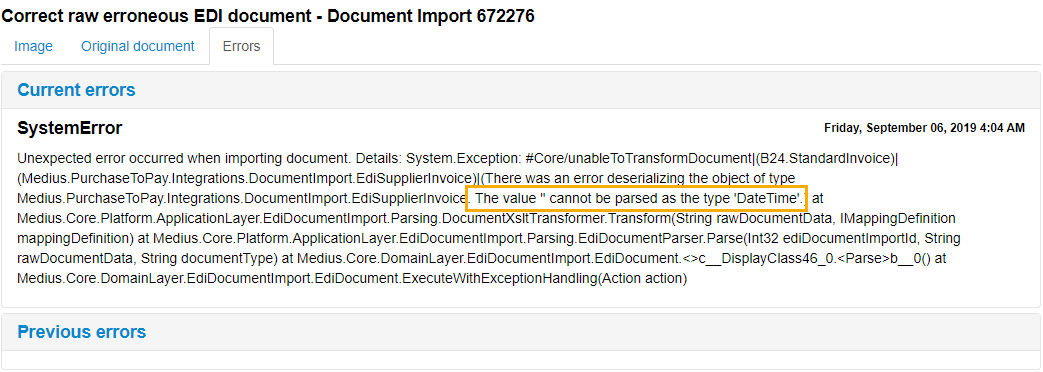
Note the highlighted text in the error message: The value '' cannot be parsed as the type 'DateTime'
In the example above, the date is missing (it should be present between the quotation marks). An incorrect date format like '0402-20-18' would also be a problem.
To correct the data:
Click the Original document tab.
Analyze all the date data shown in this tab. You can refer to the invoice image in the Image tab for date details.
When you find an incorrect or missing date field, correct it by typing in the correct date in the correct format.
Note
The correct date format is dependent on the invoice data source. If you are unsure which date format to use, contact Medius Support.
In the image above, we added '2019-09-04' as date in BookingDate and DueDate fields.
When the data is corrected, click Create to create the invoice with the corrected data. If the corrections are not completed yet, click Save to save your changes. You can come back to the document later to continue analyzing and correcting the data.
Was this article helpful?
That’s Great!
Thank you for your feedback
Sorry! We couldn't be helpful
Thank you for your feedback
Feedback sent
We appreciate your effort and will try to fix the article